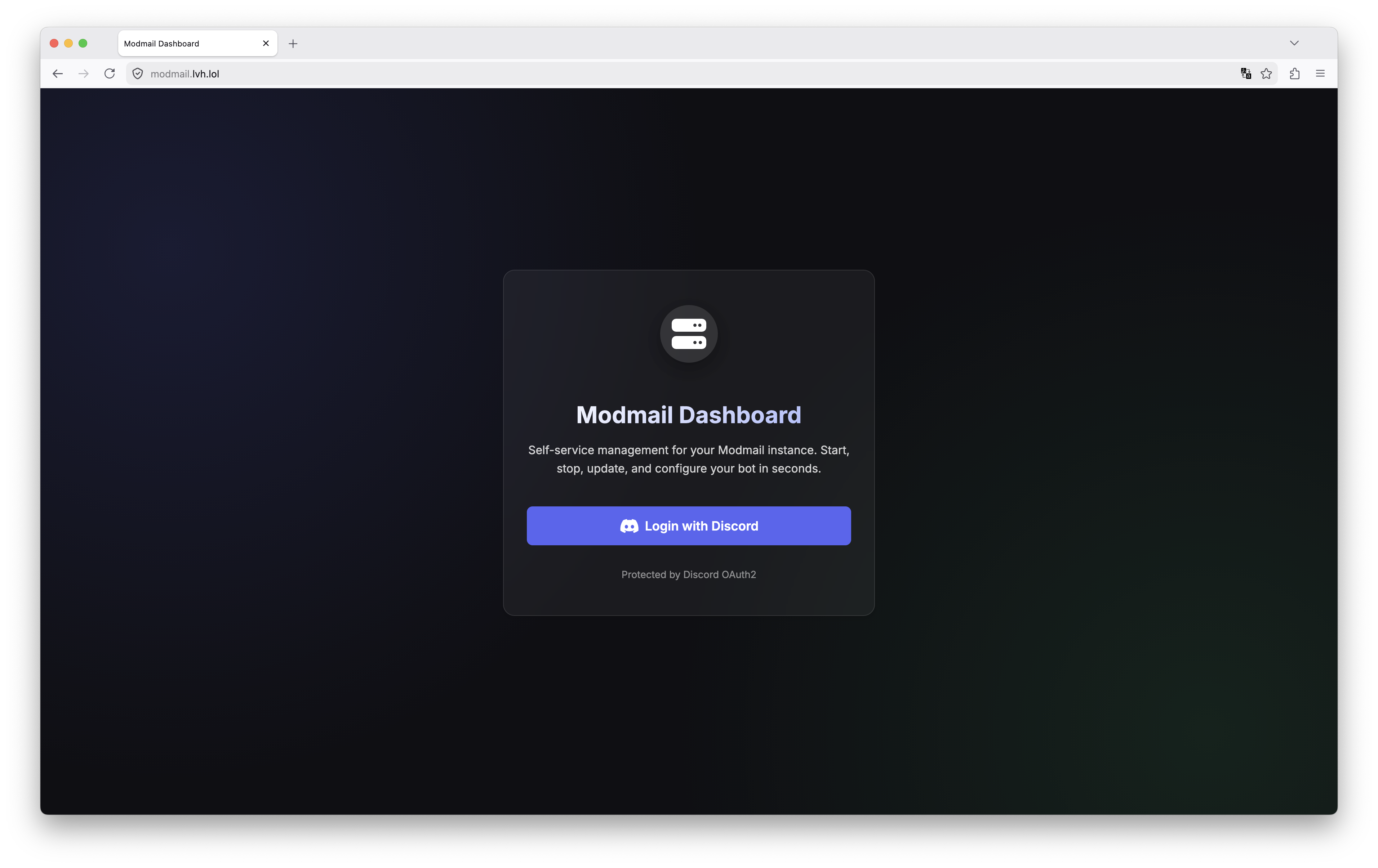
This is the Login page for the panel, press "Login with Discord" to get started.
This is the Login page for the panel, press "Login with Discord" to get started.
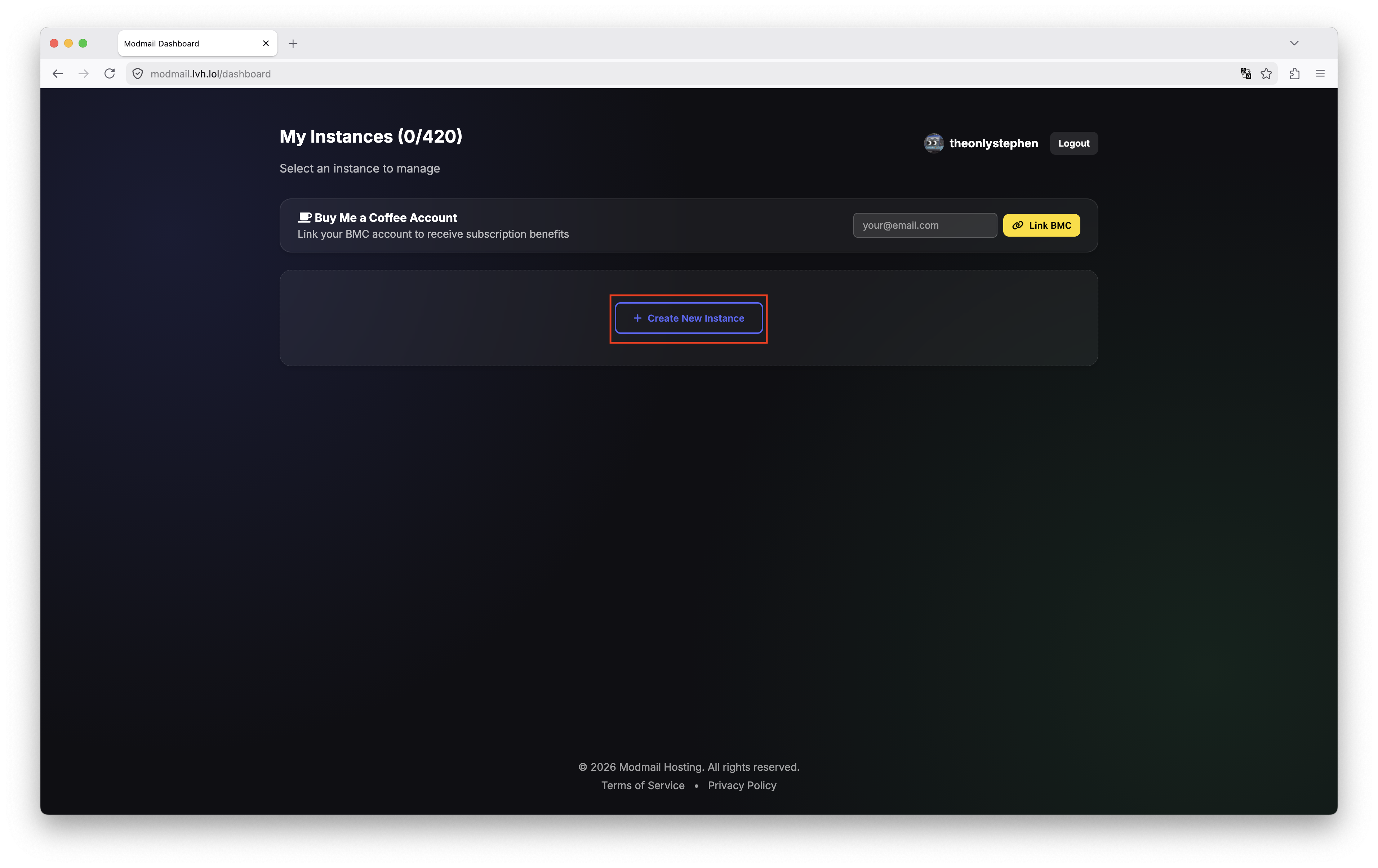
This is the homepage of the panel once you have logged in. Press Create Instance to begin.
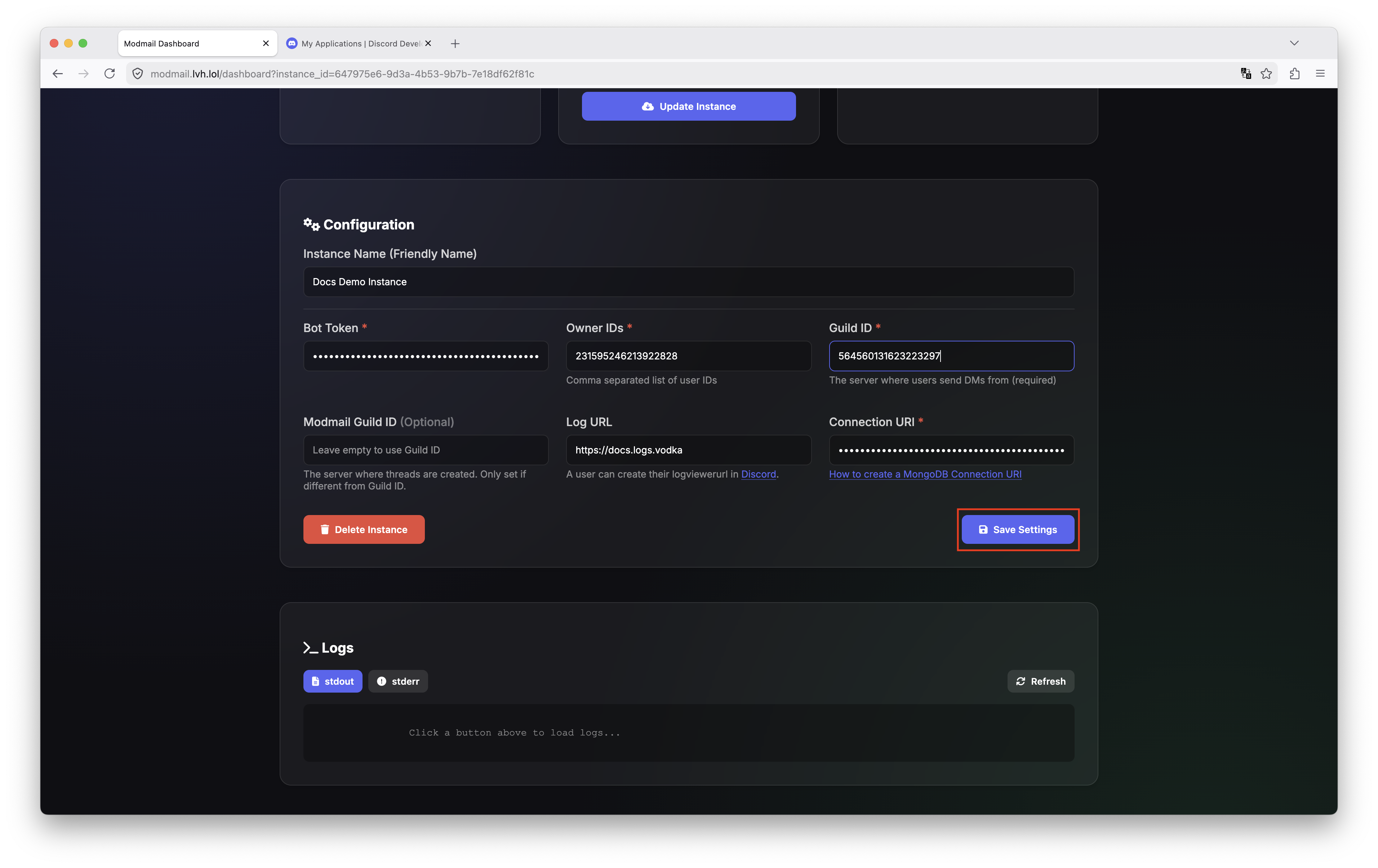
Enter the correct values into each of the fields shown, press the **Save Settings** box when completed.
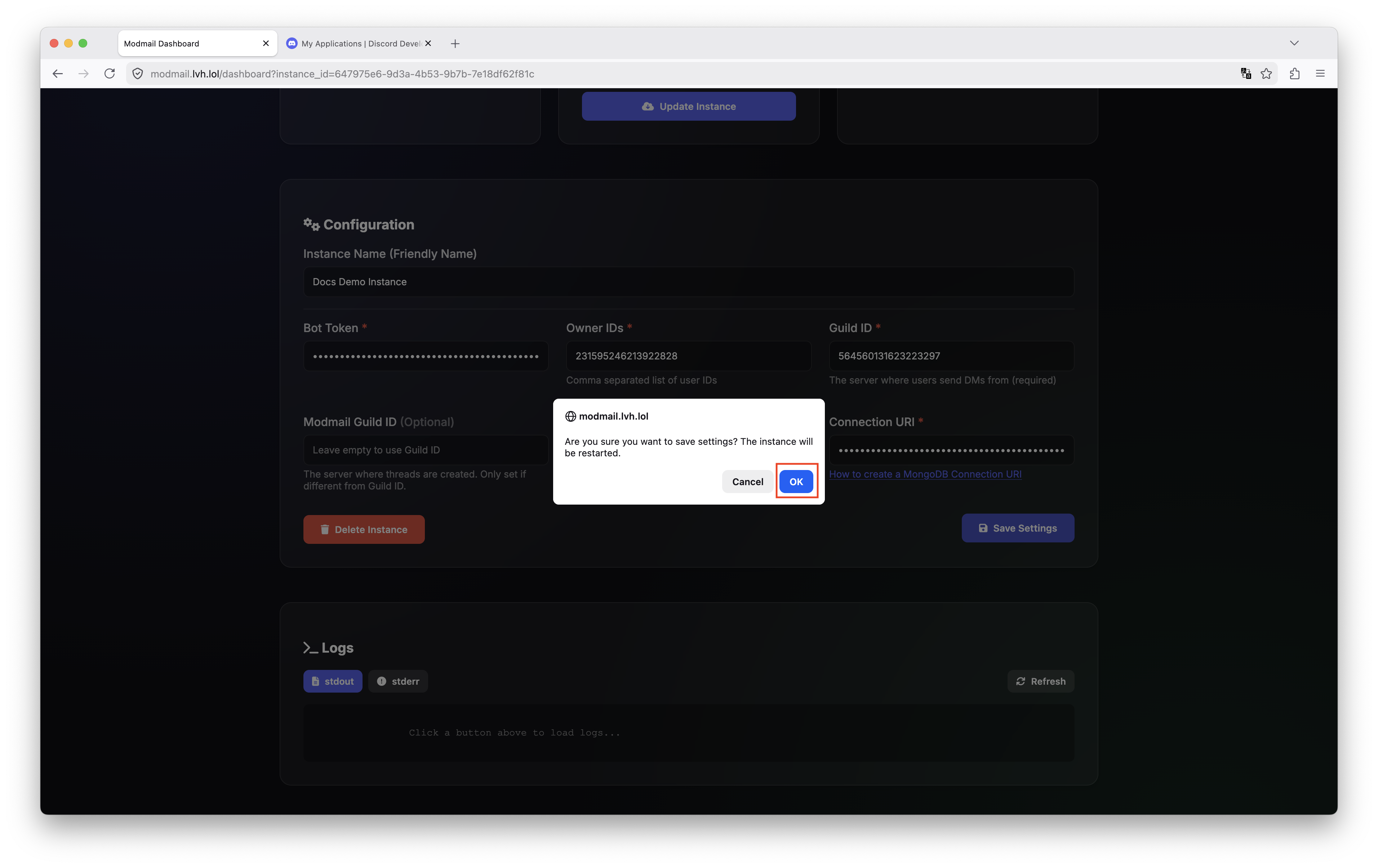
After saving settings, you will receive a confirmation prompt to ensure you wish to change your bot's values, press **Ok**.
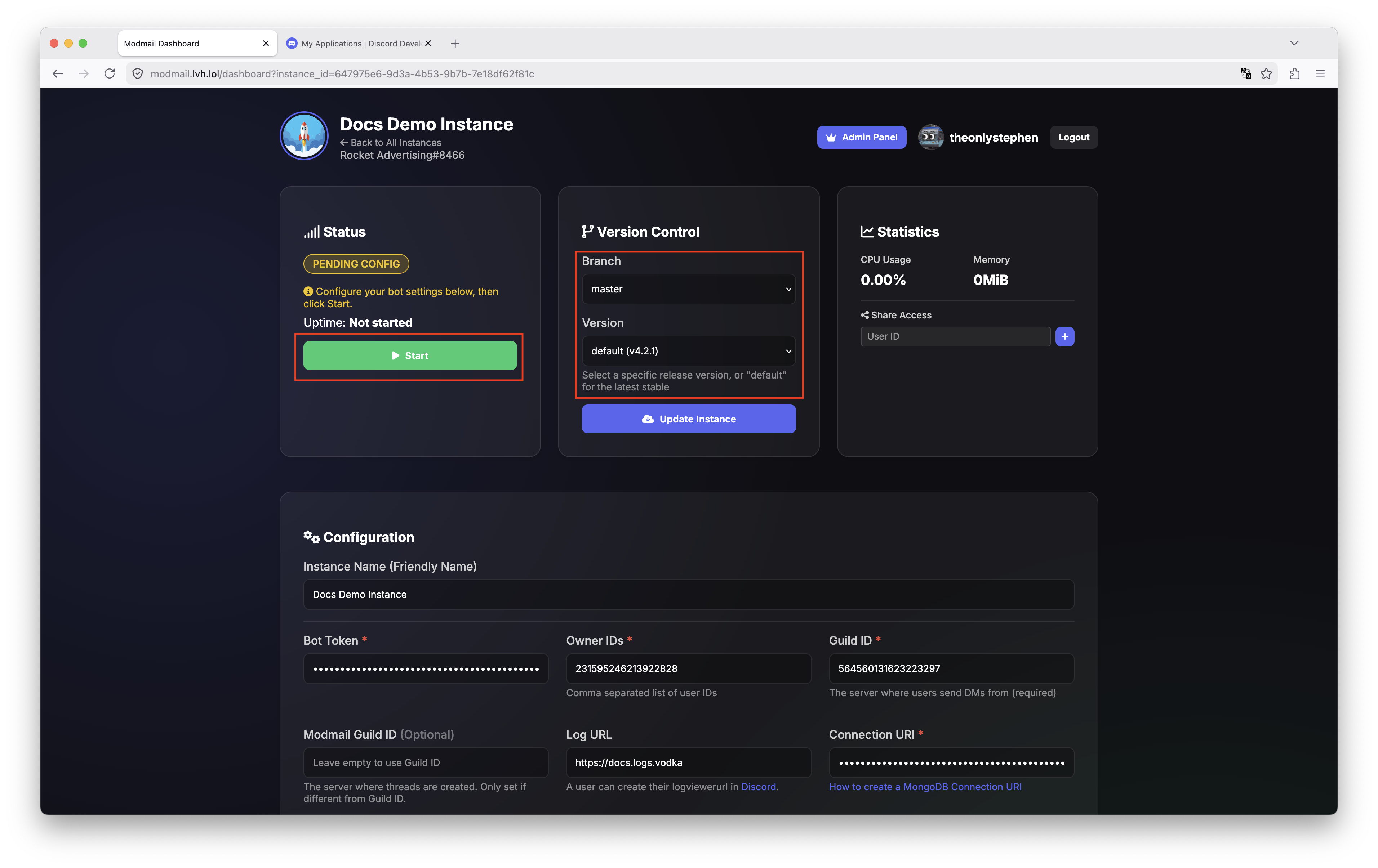
Press Start to boot up your instance for the first time.
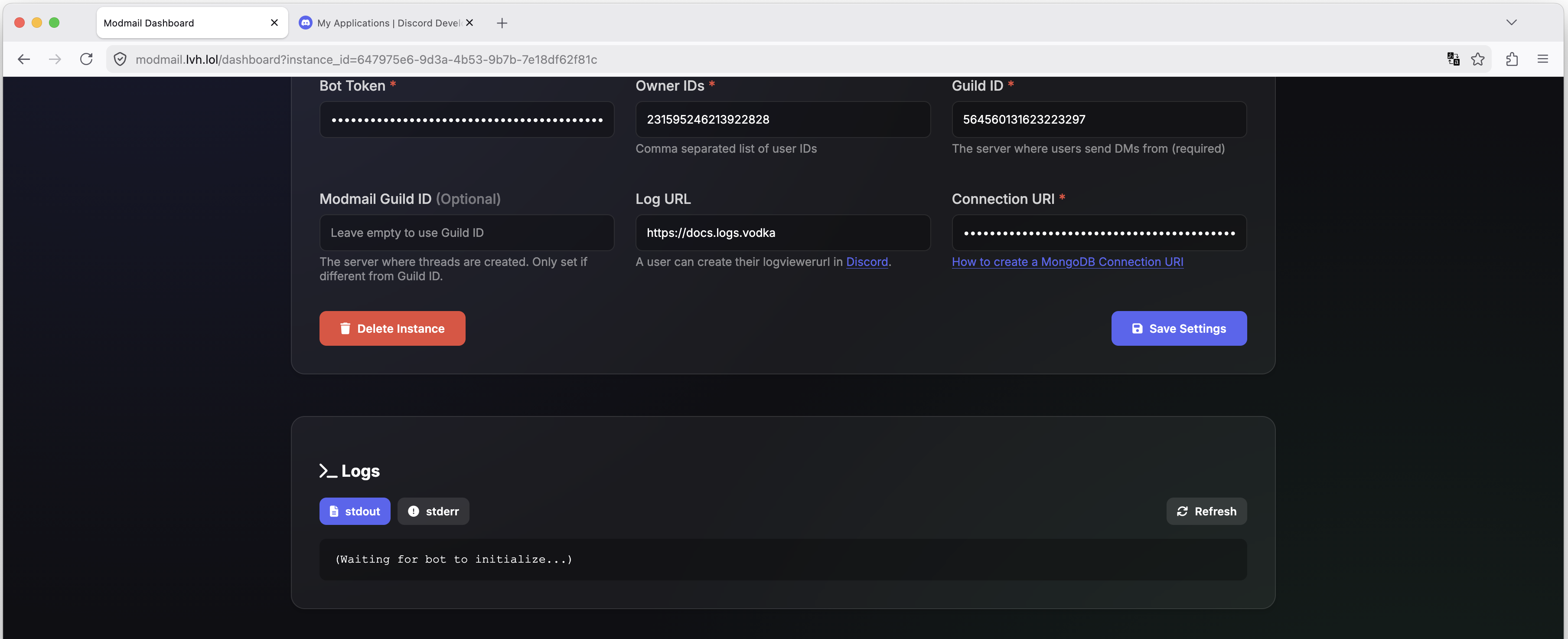
Below your bot's settings, you can see the logs of your bot at any time. During setup it will simply display "(Waiting for bot to initialize...)". If there are issues during setup they will display here when you press Refresh.
Below your bot's settings, you can see the logs of your bot at any time. During setup it will simply display "(Waiting for bot to initialize...)". If there are issues during setup they will display here when you press Refresh.
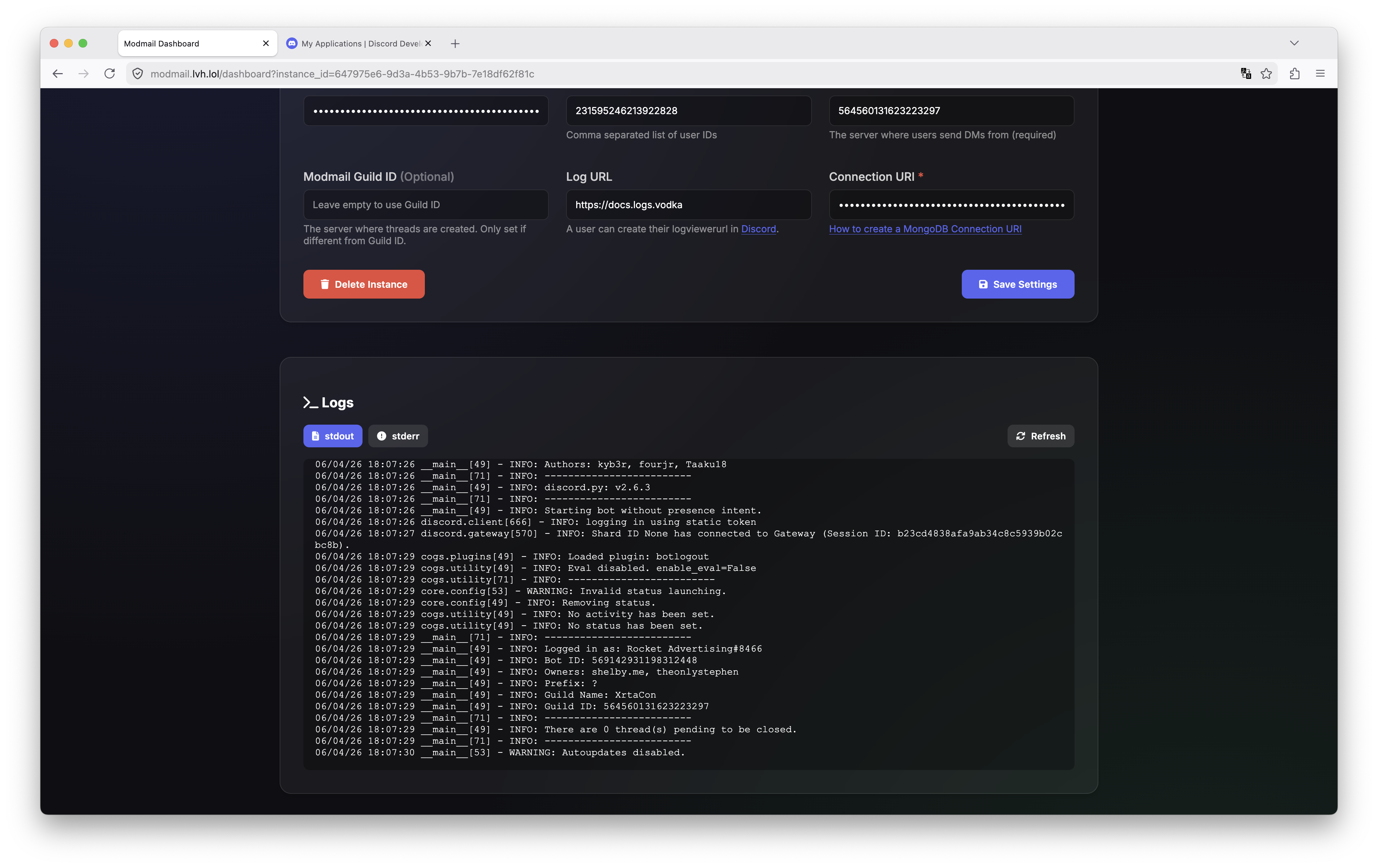
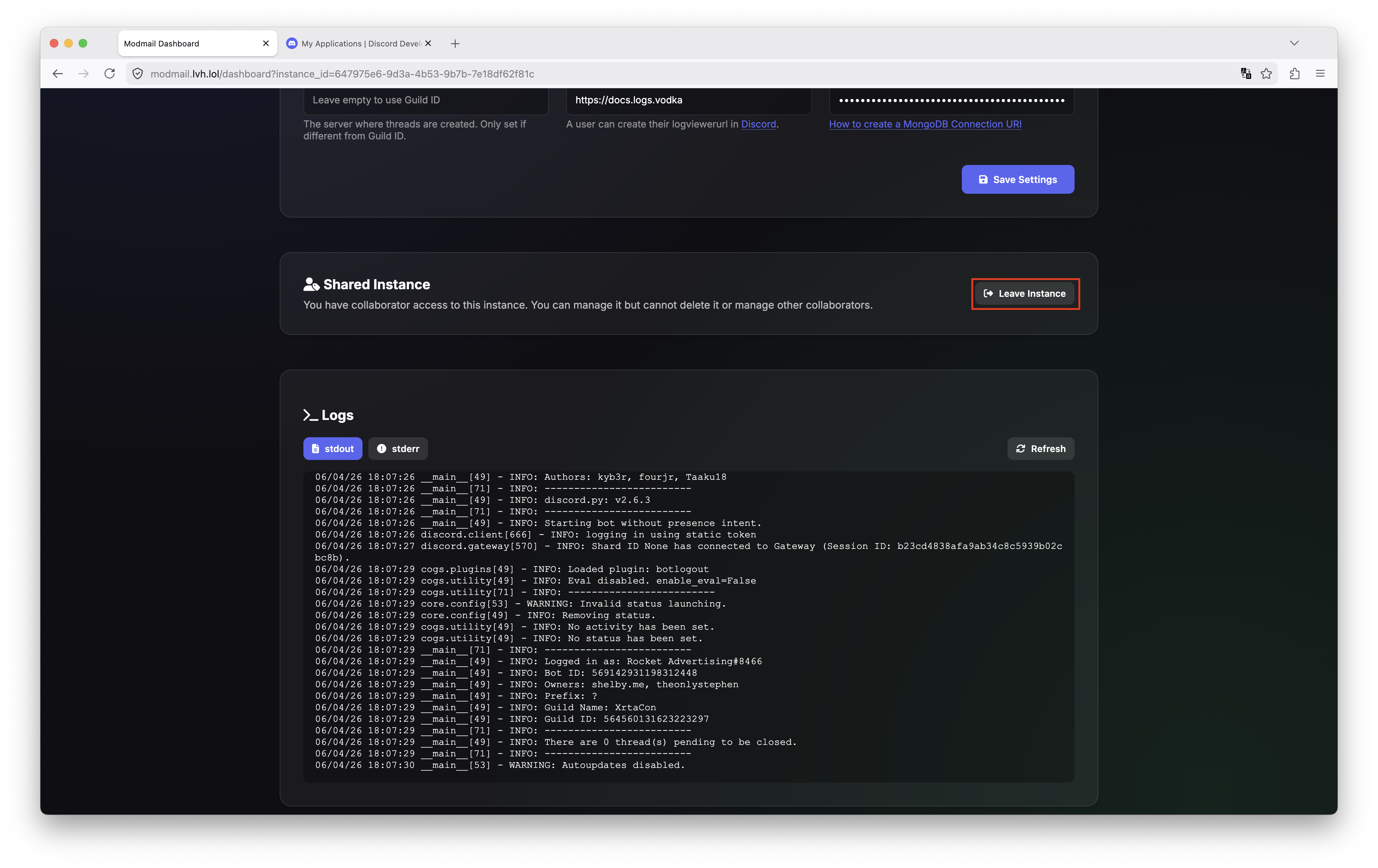
Your logs will look something similar to this once your setup is complete.
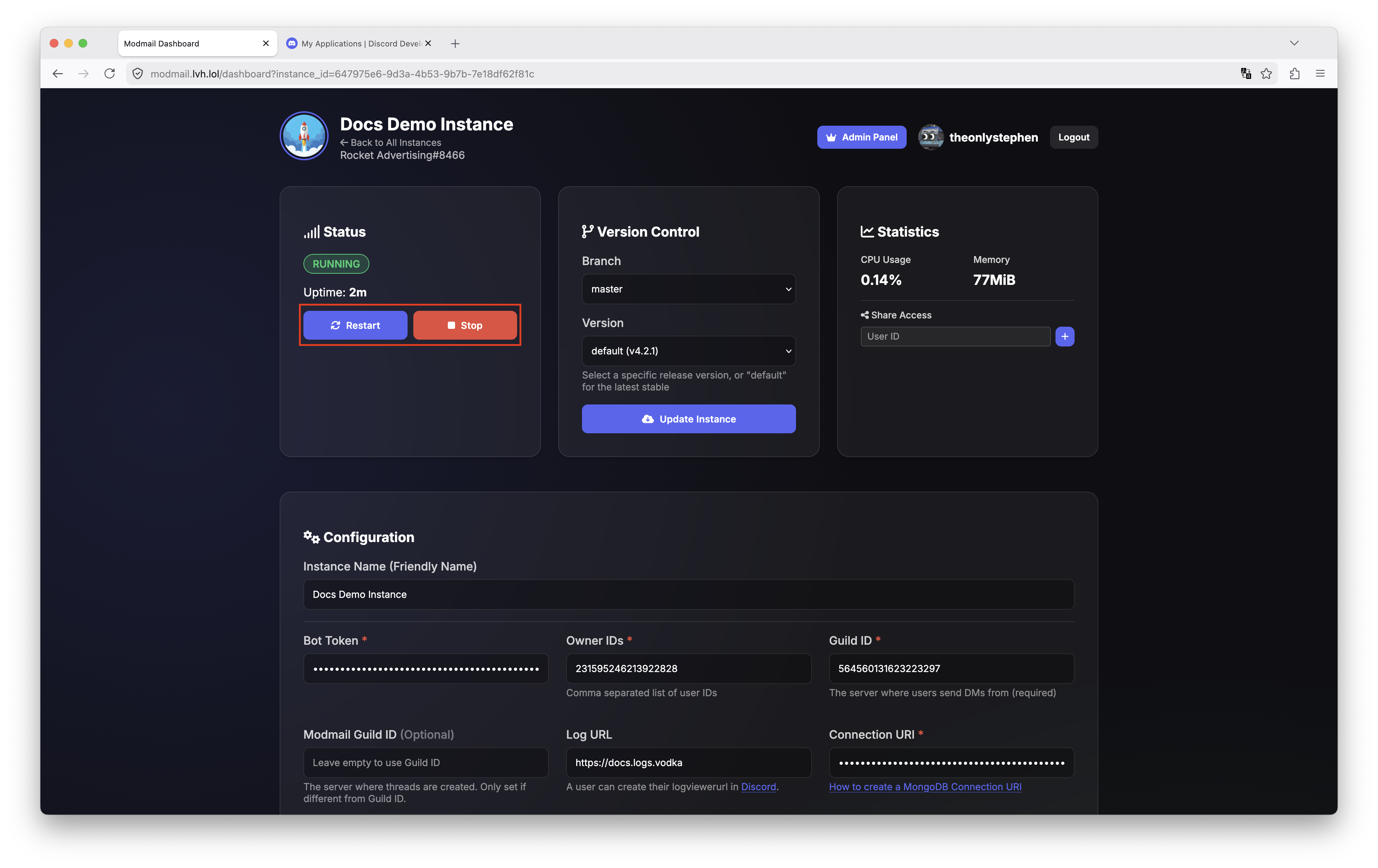
Each bot has its own sharing settings, so if you'd like to share multiple bots, you'll need to do one at a time.
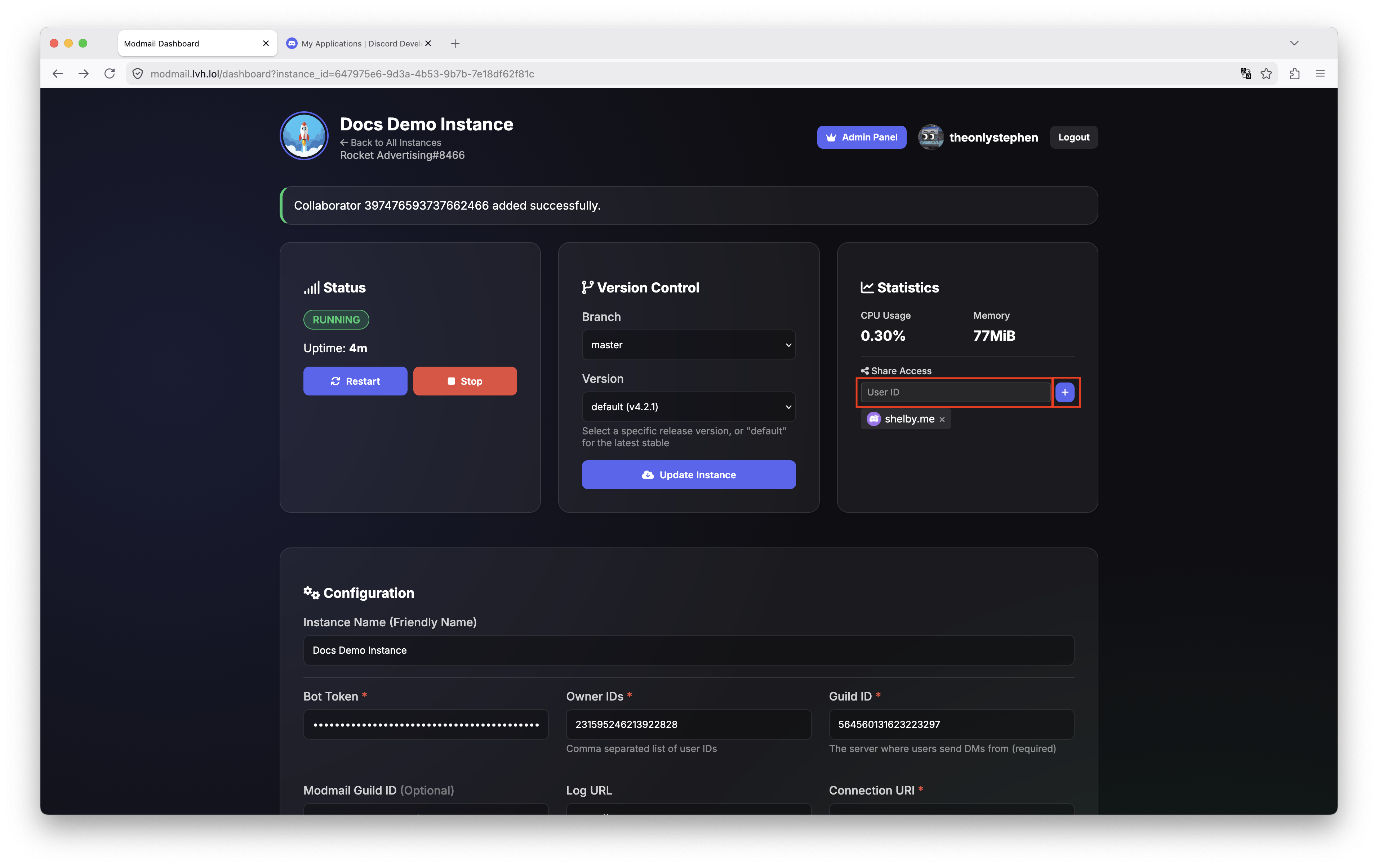
Paste the user you wish to share access with in the field labeled User ID then press the + button.
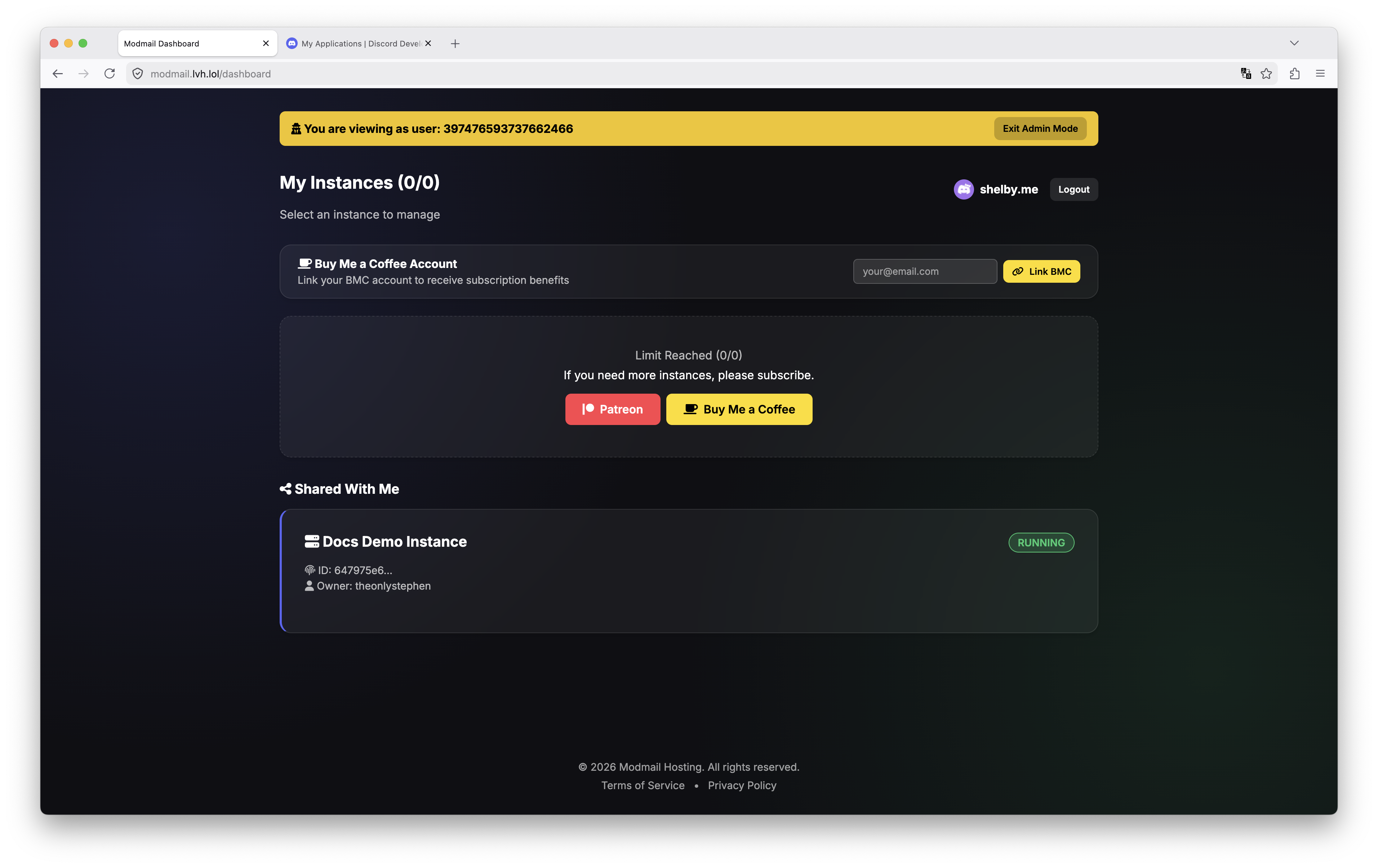 {% endhint %}
{% endstep %}
{% endstepper %}
### Removing Access to a Shared Instance
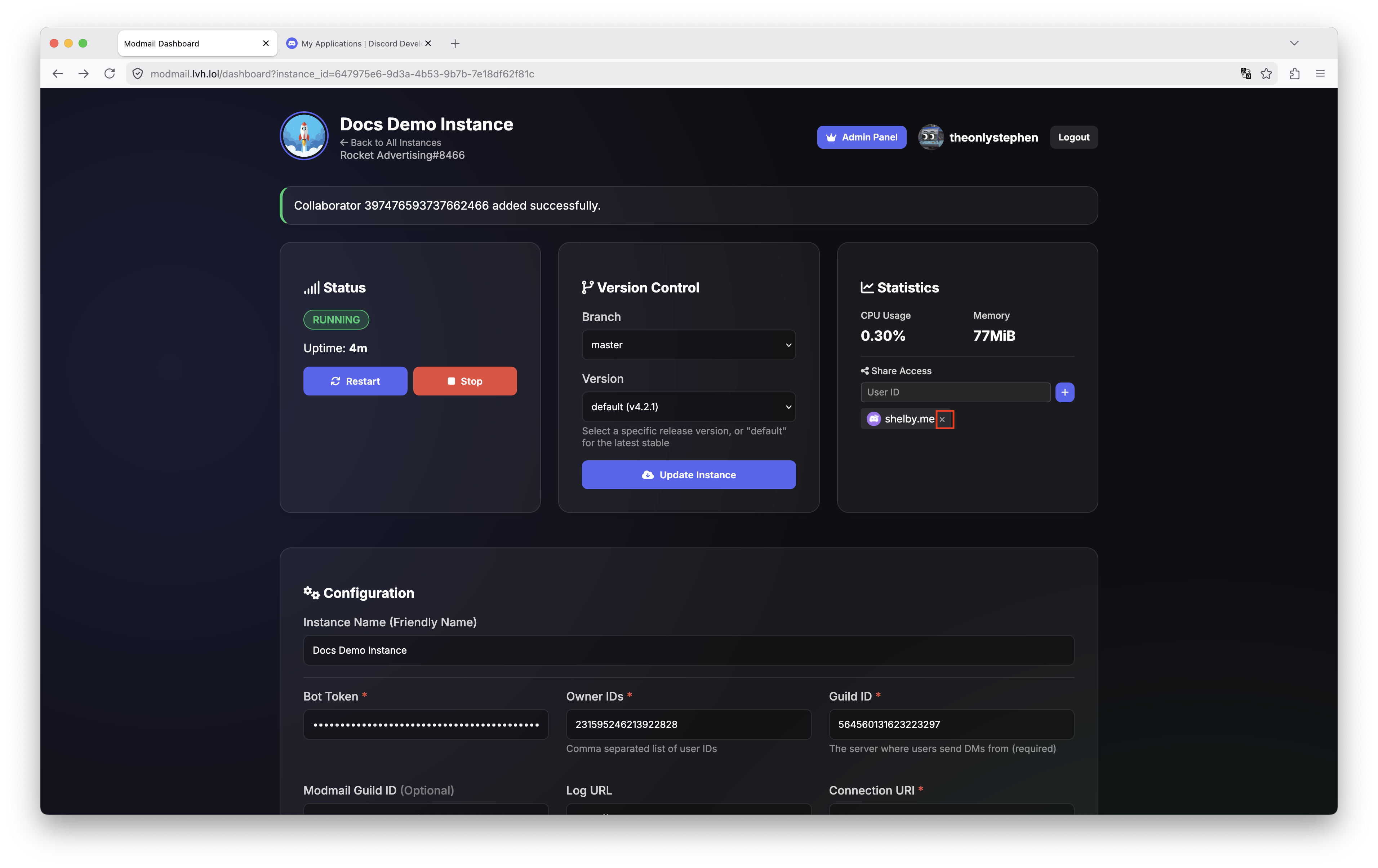
If you have shared your bot with someone else, you can revoke their access at any time by pressing the **X** next to their username. See red box in the screenshot below:
{% endhint %}
{% endstep %}
{% endstepper %}
### Removing Access to a Shared Instance
If you have shared your bot with someone else, you can revoke their access at any time by pressing the **X** next to their username. See red box in the screenshot below: